Templates and notes
Templates turn repeatable investigations into a library of procedures. Open Templates in the sidebar. Creating and maintaining templates requires Template Editor permission or administrator access.
Choose a template type
| Type | Use it for |
|---|---|
| Case template | An investigation structure with tasks, description and contextual tags. |
| Task template | A reusable work item with notes, subtasks and useful URLs. |
| Note template | A structured document such as a handover, incident report or analysis worksheet. |
Build and use a playbook
- Create task templates for the repeatable steps. Include clear completion criteria in their descriptions or notes.
- Create a case template and add the task templates in the order you want analysts to follow.
- Add relevant tags and clusters, and review the case-level note.
- Select Create case from template and give the new investigation a title.
- Review the new case, organisations, assignments and deadlines before starting work.
The new case is an independent copy. Later template edits do not update cases already created from it.
You can also choose Actions > Template on an existing case. This conversion does not copy every piece of operational data: notes, files, connector instances, deadlines and assignments are not all carried over. Review the generated template and remove investigation-specific material before reuse. Existing task templates with matching titles may be reused.
Notes and variables
Use Markdown for headings, lists, tables and links. Mermaid diagrams can describe an investigation or procedure. Note templates and notes support live @-variables:
| Variable | Value |
|---|---|
@this.case.title | Current case title |
@this.case.status | Current case status |
@this.case.deadline | Current case deadline |
@this.task.title | Current task title |
@this.task.assigned_users | Task assignees |
@user.full_name | Current user’s full name |
@today | Current date |
Type @ in the editor to discover available variables, and use Tools > Variable Syntax for the full reference. Variables resolve when content is rendered; they are not a fixed historical snapshot. Review rendered values when producing a report.
Share templates
Export templates as JSON and import them through the template importer. Case import and template import are different operations; use the corresponding destination.
A central template repository supplies templates from directories on the Flowintel server. Administrators configure repository paths; authorised template editors can discover repositories with a manifest.json, register them, refresh their entries and import case or task templates. Refreshing reads the server’s filesystem; it does not itself fetch a remote Git repository.
Importing a repository template with an existing UUID updates the local template. Review repository changes before importing them into an operational playbook library.
Set up a template repository
A repository is a directory containing a manifest and JSON case/task templates. It must be accessible on the Flowintel application server; a URL alone is not enough. You need filesystem access to prepare it, and Template Editor permission or administrator access to register and import it in Flowintel.
1. Prepare the directory
From the Flowintel application root, create a repository:
mkdir -p modules/repositories/team-playbooks/case
mkdir -p modules/repositories/team-playbooks/task
Alternatively, clone an existing template repository into that location, replacing the example URL with your own:
git clone https://git.example.org/security/team-playbooks.git \
  modules/repositories/team-playbooks
The expected layout is:
modules/repositories/
└── team-playbooks/
    ├── manifest.json
    ├── case/
    │   └── phishing-investigation.json
    └── task/
        └── triage-email.json
Flowintel scans immediate subdirectories of REPOSITORY_BASE_PATH, which defaults to modules/repositories relative to the application root. To use another location, set REPOSITORY_BASE_PATH in the application’s runtime environment or configuration and restart the application. Absolute paths are supported.
The application service user needs permission to traverse these directories and read their files. In Docker, mount the repository directory into the Flowintel container and configure the path inside the container. A read-only mount is sufficient for scanning and importing templates.
2. Add the manifest
Create modules/repositories/team-playbooks/manifest.json:
{
  "name": "Team playbooks",
  "description": "Shared investigation procedures for the security team.",
  "uuid": "70a78eca-fb9c-4ec6-a867-25ec9aef4541",
  "version": 1
}
Include all four fields. Generate a unique repository UUID, for example with python3 -c 'import uuid; print(uuid.uuid4())', and replace the example UUID. Keep that UUID stable across updates; use a new one for a separate repository. Increase the version when publishing revisions.
3. Add template files
Create and export a case or task template from Flowintel, then save its JSON in the corresponding case/ or task/ directory. Use template exports, not ordinary case exports. Case template exports can include their task templates in tasks_template.
Each file must contain a single template JSON object with its own non-empty uuid. Preserve that UUID when updating the same template, and supply a version to help users compare revisions. The repository UUID and individual template UUIDs identify different things.
Use filenames ending in .json and place them directly in the type directory: the scanner does not recursively search nested folders. Files with invalid JSON or no UUID are skipped. Repository discovery supports case and task templates; it does not scan a separate note-template directory.
4. Register and import
- Open Templates > Repositories and click Scan.
- Find the new directory and add it as a registered repository.
- Use Check to verify the local path and manifest.
- Use Sync to read the files and populate the repository’s template list.
- Use View to inspect a template, then Import to add it to your instance.
- Open the imported template and create a test case to verify its tasks, notes and context before using it operationally.
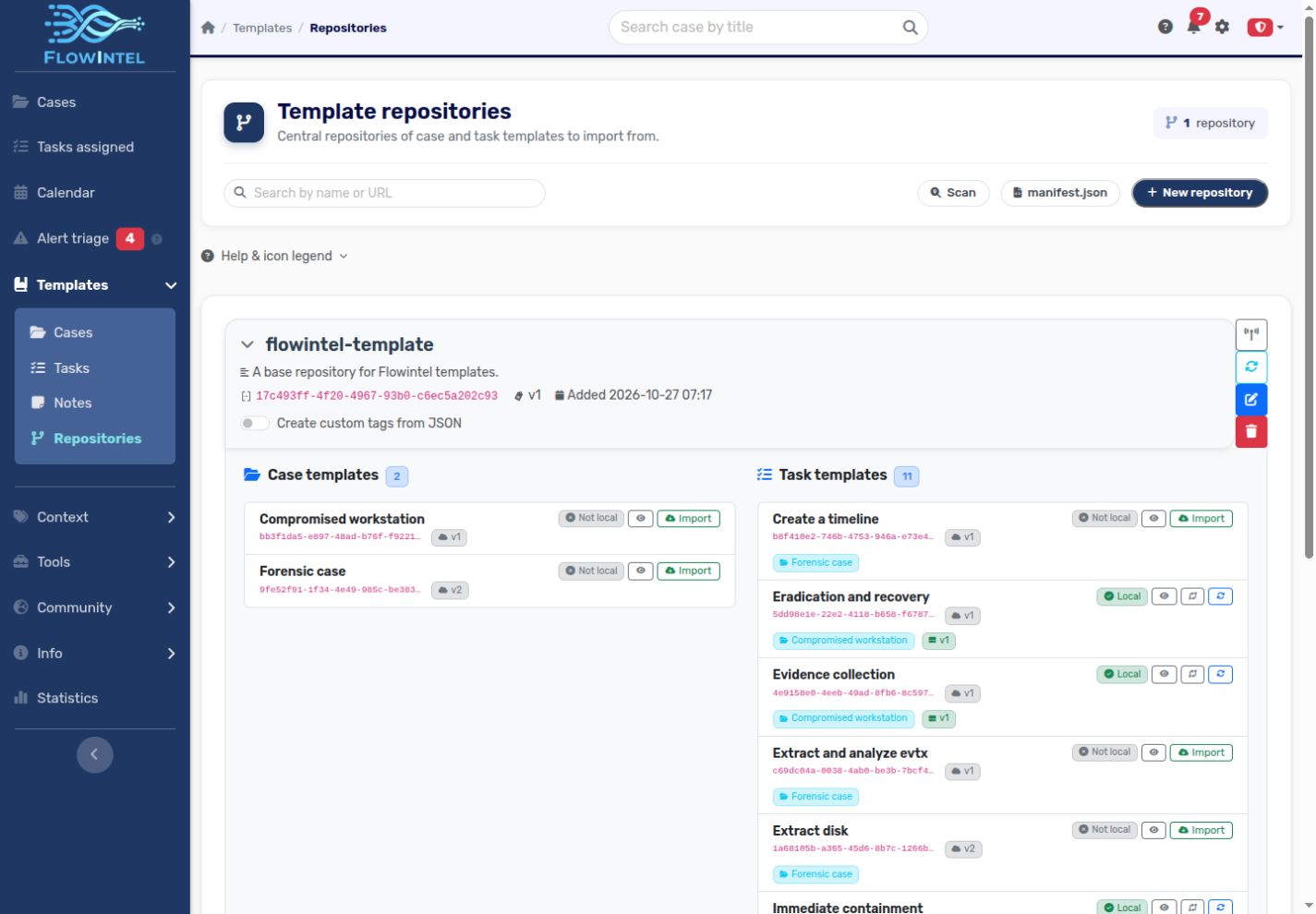
If the repository is missing from the scan, check the base path, directory nesting and service-user permissions. If it appears but has no templates, check file extensions, JSON syntax and template UUIDs.
5. Publish and apply updates
Update the files on the application server first. For a Git-managed repository, review and pull the intended changes using your normal deployment process, for example:
git -C modules/repositories/team-playbooks pull --ff-only
Then select Sync in Flowintel to update the repository listing. Use Diff to compare a repository template with the imported local copy, and Refresh on the template to apply the update. Refresh can overwrite local template edits, including a locally newer version, so review the differences first.
Sync does not run git pull, and syncing the listing does not automatically update all imported templates. Existing cases created from those templates remain independent copies. Deleting the repository registration removes it from Flowintel’s repository list without deleting its files on disk.